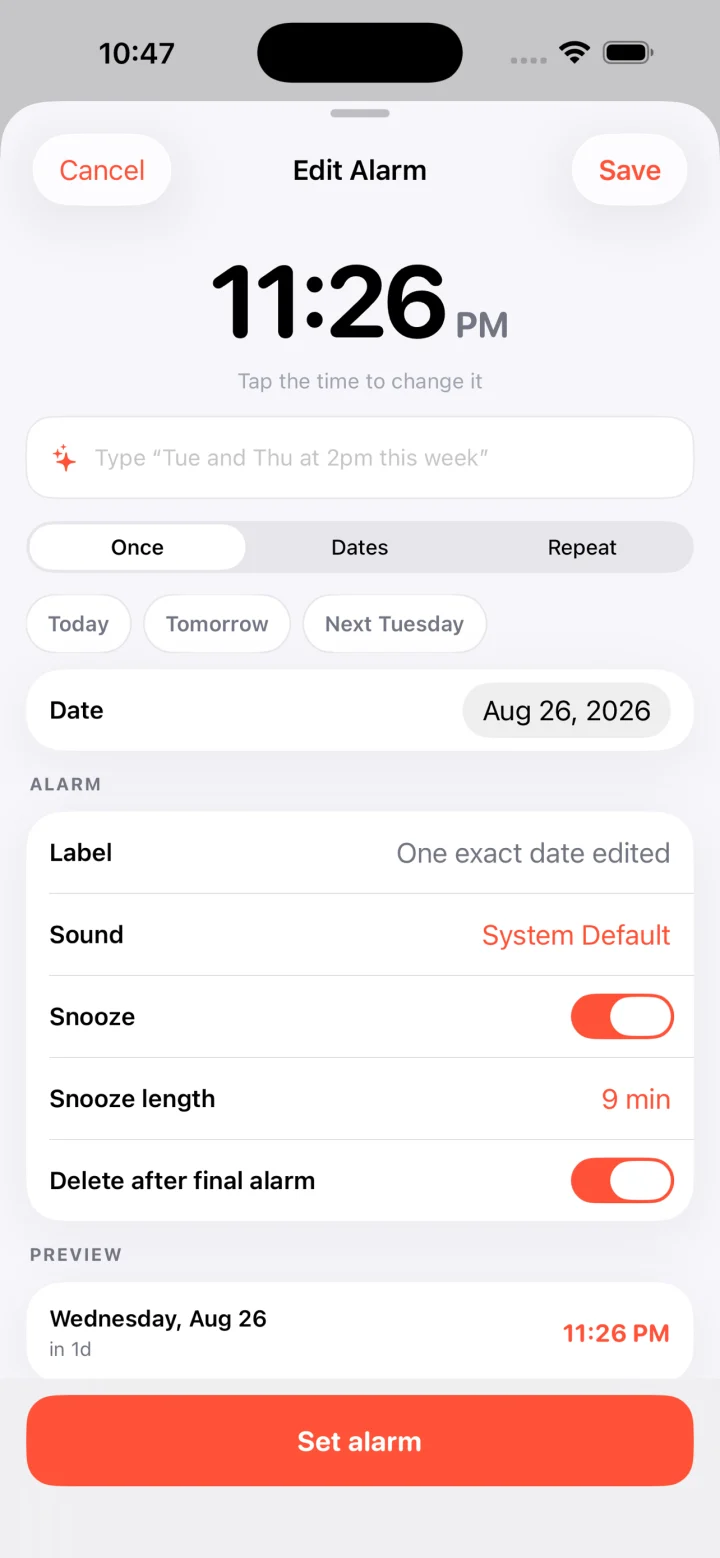
01 / Once
One important date.
Pick the exact day and time. Optionally remove the schedule after the alarm finishes.
 SetFor
Date-first alarms for iPhone
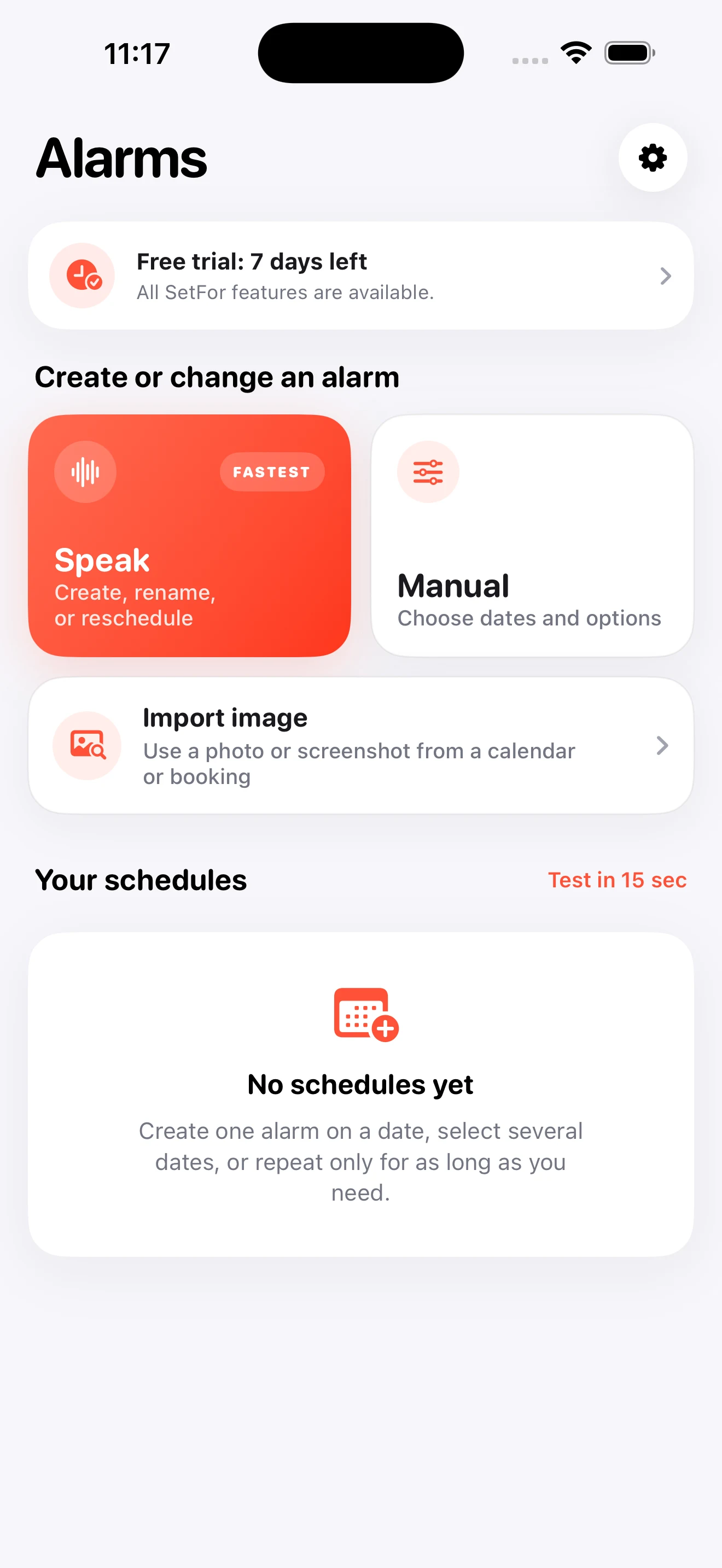
Say a request, show a photo or screenshot, or choose every detail yourself. Review every alarm before SetFor creates it.
Starts only when you tap. No card. No subscription. No automatic charge.
Built for iOS 26 with Apple’s AlarmKit.
The schedule you mean
Choose the shape of the schedule first. SetFor keeps the controls familiar and shows the result before anything is saved. See how to set an alarm for a future date.
Pick the exact day and time. Optionally remove the schedule after the alarm finishes.
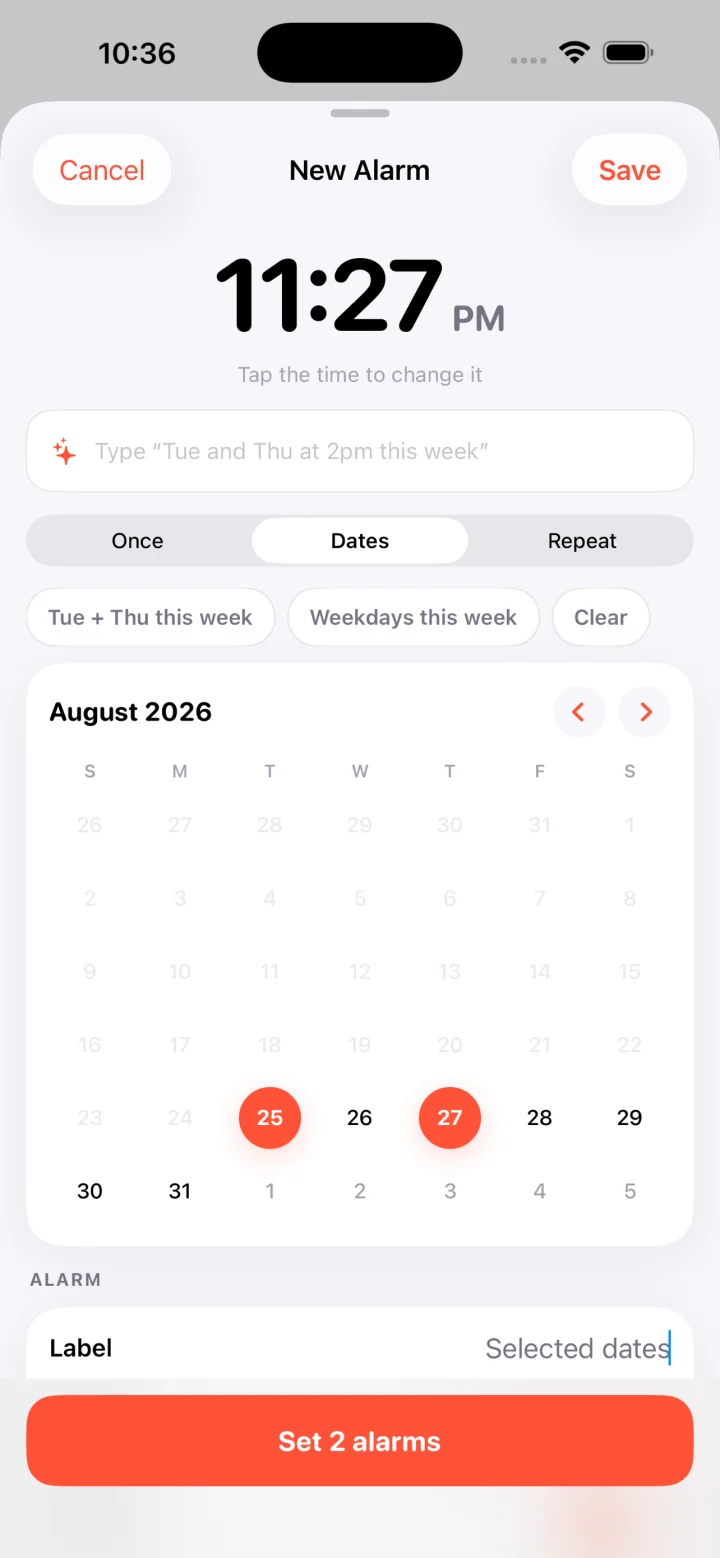
Tap every day that matters and keep them together at one alarm time.
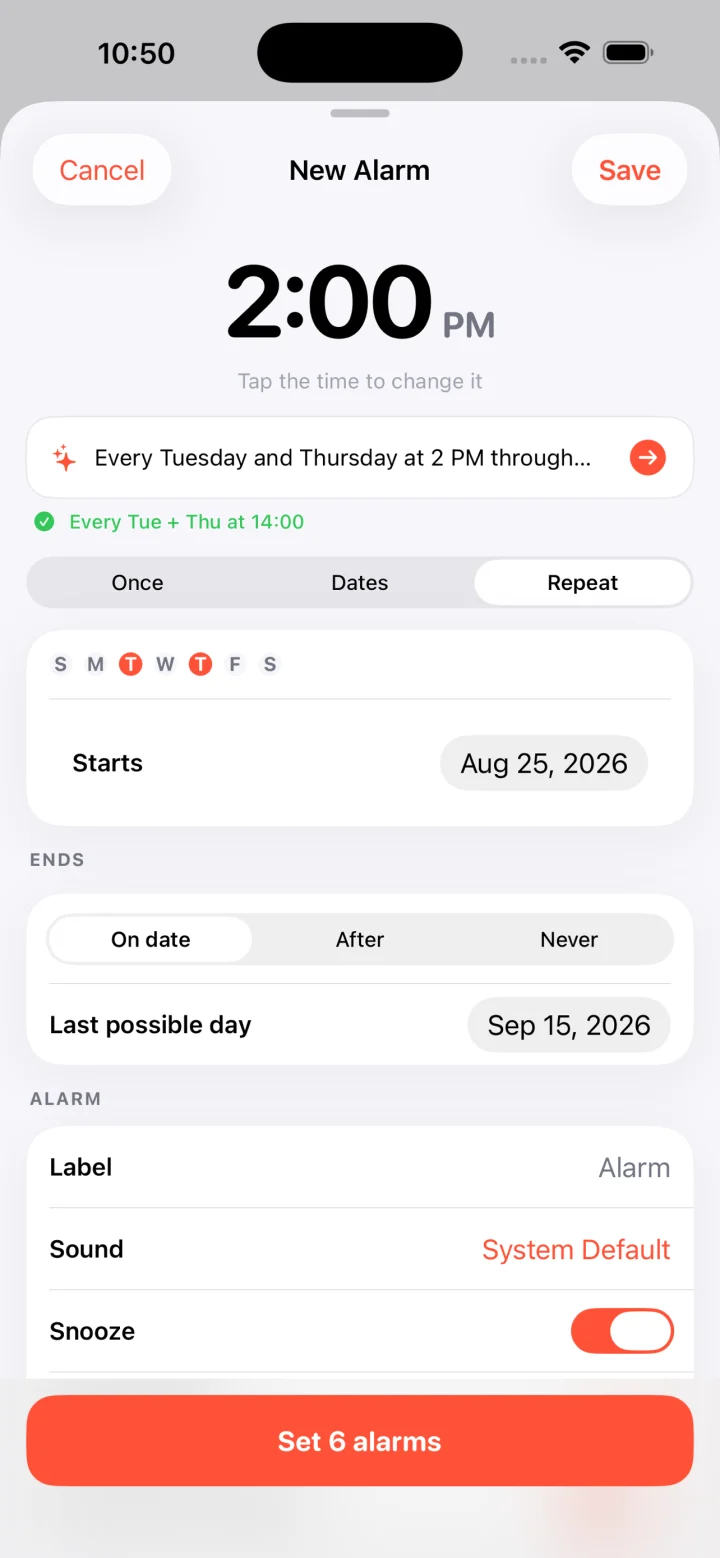
Repeat on chosen weekdays, then stop on a date, after a fixed number, or never.
A faster starting point
Speak a request or show a photo or screenshot. Review every alarm before SetFor creates it.
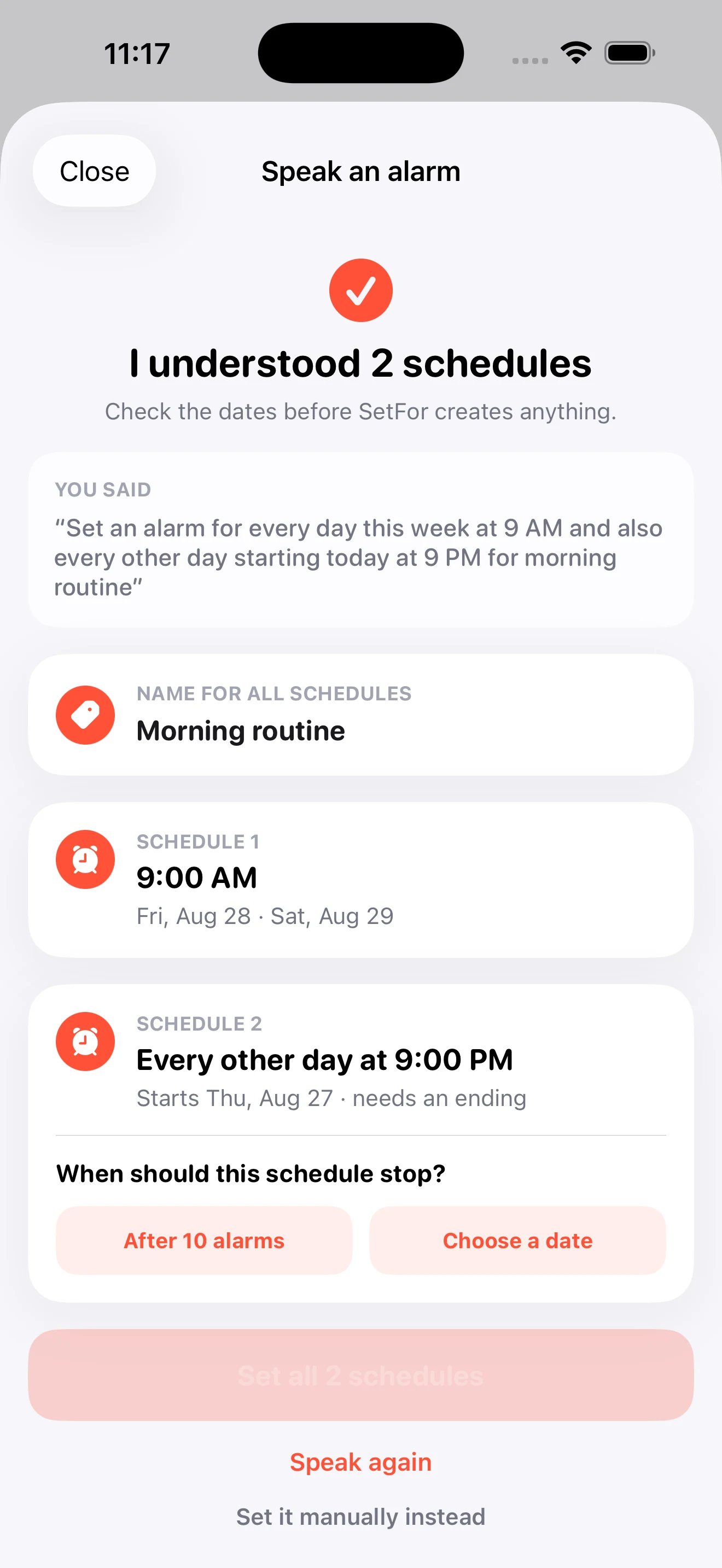
Create, name, rename, or reschedule alarms with a natural request. SetFor stops listening when you finish, then turns the request into an editable review.
“Every day this week at 9 AM, and every other day at 9 PM for Morning routine.”
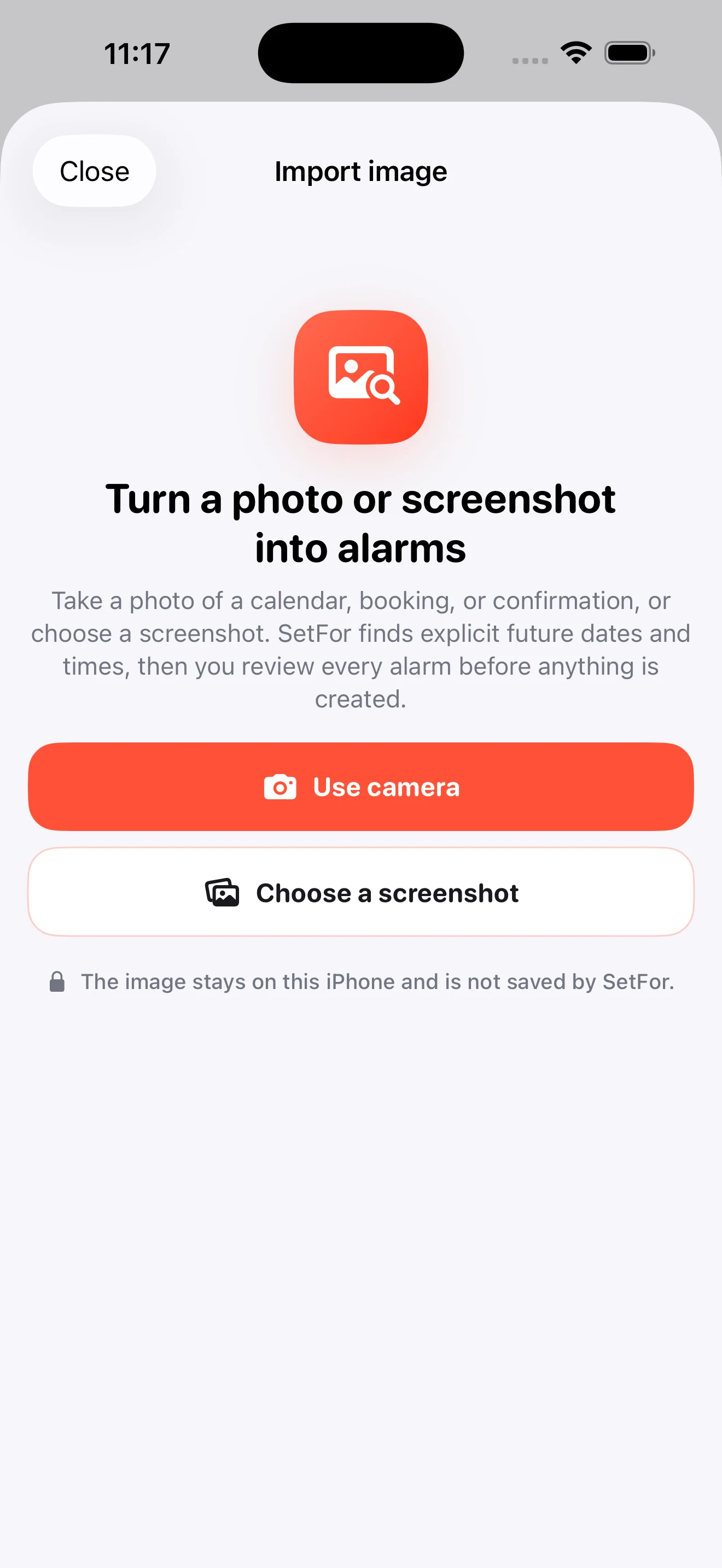
Take a photo of a booking or calendar, or choose a screenshot. SetFor finds clear future dates and times, then lets you edit or remove every proposal.
Useful for booking confirmations, event details, care visits, and travel plans.
Adjust names, dates, times, or remove any proposal. The full manual editor remains one tap away whenever you want to choose every detail.
The SetFor difference
SetFor turns a bounded schedule into concrete alarm dates before you save. You can inspect the finish line instead of trusting a vague repeat rule.
Stay in control
A temporary alarm should not become a maintenance project.
Change the time, dates, label, sound, snooze, or ending.
Pause a schedule without losing the dates you already chose.
Ignore one upcoming ring without breaking the rest of the series.
Delete manually or remove a bounded schedule after its final alarm.
Siri and Shortcuts
Siri can create a SetFor alarm without making you open the app or tap through an editor. Inside SetFor, the Speak flow is the faster way to create, name, or change an alarm by voice.
Before you startOpen SetFor once and allow alarm access. Say the app name as two words: “Set For.”
SetFor creates the one-time alarm and Siri confirms it.
SetFor builds the bounded schedule and confirms the final date.
“Hey Siri, speak an alarm in Set For.”
“Hey Siri, change an alarm in Set For.”
“Hey Siri, test Set For alarm.”
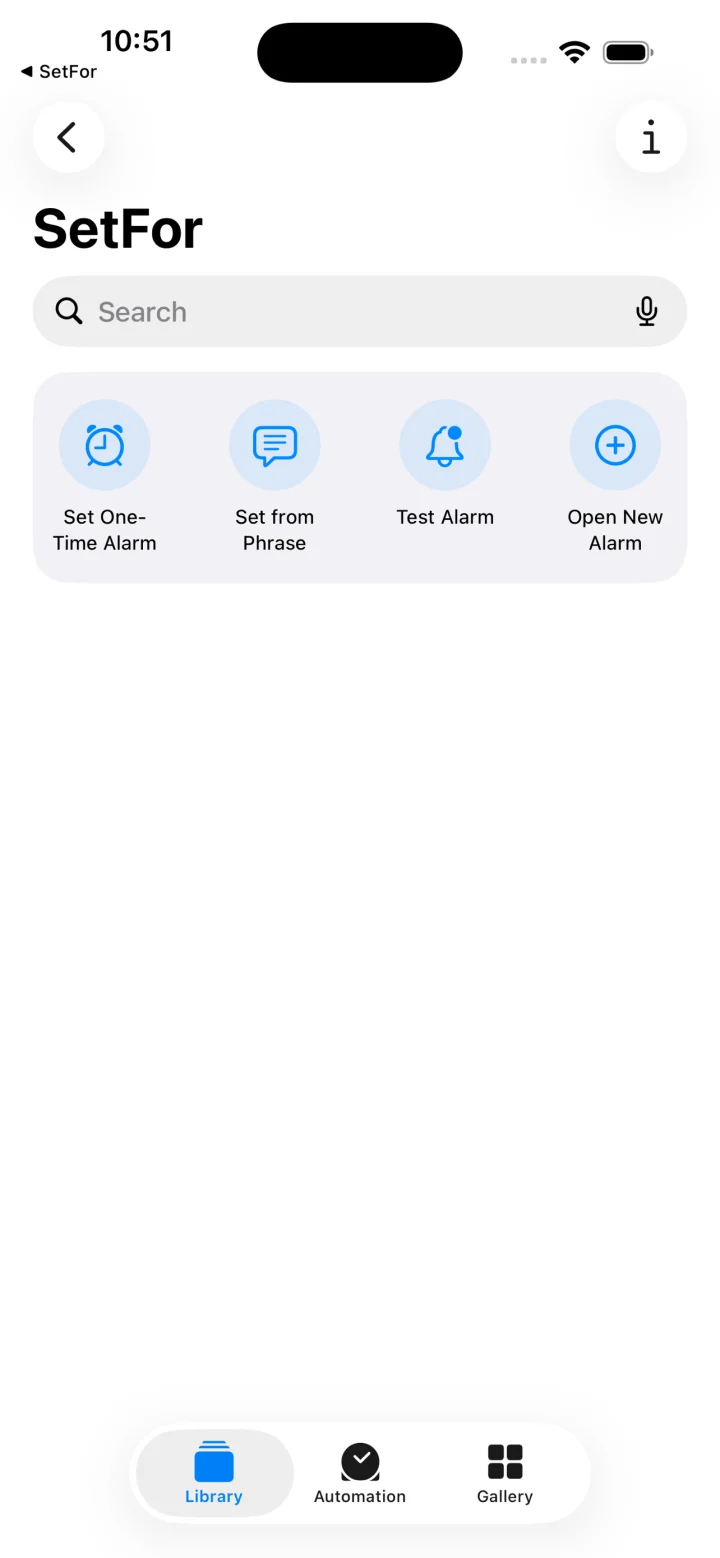
“Hey Siri, open a new alarm in Set For.”
Private by design
No SetFor account. No app backend. No analytics. No advertising. No calendar permission.
Try first, own once
The full app is unlocked during the trial. Starting it does not open a payment sheet or create a subscription.
Honest comparison
SetFor is the date-boundary specialist. Other apps are better for basic weekday alarms, wake-up missions, calendar views, or shared reminders.
Swipe sideways to compare every app.
| Capability | SetFor | Apple Clock | Alarm Pro | Alarm by Date | Alarmy | Galarm |
|---|---|---|---|---|---|---|
| Best for | Date-bounded system alarms | Simple time and weekday alarms | Calendar-style alarms and advanced repeat rules | Date and range reminder alarms | Heavy-sleeper wake-up missions and sleep tracking | Flexible personal, buddy, and group alarms |
| Exact future date | Yes | Not in the documented Clock flow | Yes | Yes | Not advertised | Yes |
| Bounded repeat | End date or fixed count | Weekdays, without an end boundary | Not advertised | Date-range alarms | Not advertised | Many repeat rules; end boundary not advertised |
| Privacy and account model | No account, backend, analytics, or calendar access | Built into iOS | No account, tracking, or data collection advertised | App Store lists tracking identifiers | Sleep and snore features; see its privacy disclosure | Phone number, contacts integration, and cloud storage |
| Price model | 7 days free; $4.99 lifetime | Included with iPhone | Free; $2.99 lifetime IAP | Free | Free; premium subscription with auto-renewing 7-day trial | Free; optional premium |
Published product information and U.S. prices reviewed 2026-08-26. Not advertised means the capability was not verified in the linked official product material. It does not prove that no version of the product can perform a similar task. Prices and features can change.
Sources: Apple Clock, Alarm Pro, Alarm by Date, Alarmy, Galarm.
Questions, answered plainly
Apple Clock is excellent for a time or selected weekdays. SetFor adds exact future dates, several non-pattern dates, bounded weekly schedules, fixed occurrence counts, and a concrete preview of every bounded ring.
No. The trial starts only when you tap to begin it. It requires no payment information, creates no subscription, and ends without charging you.
Already scheduled alarms keep working and can still be disabled or deleted. A lifetime unlock is required to create, edit, re-enable, skip, or test alarms.
Yes. Choose No end date when you genuinely want an indefinite weekly schedule. SetFor never makes that the accidental default.
No. SetFor schedules alarms with Apple’s AlarmKit and does not request access to your calendar.
Yes. Use Speak to create, name, rename, or reschedule an alarm in your own words. Or import a camera photo or screenshot, then review every proposed alarm before confirming it.
Yes. Siri and Shortcuts work outside SetFor for creation, temporary schedules, testing, and opening the editor. Inside SetFor, Speak is the quickest in-app voice flow. See the exact Siri phrases and conversation.
Questions about scheduling, AlarmKit access, Siri, or a missed alert? Start with support or email us.
SetFor requires iOS 26 or later.